Admin and Content Quick Navigation, Sticky action buttons - This week in Orchard (27/11/2026)
Want to jump to any admin page without clicking through the menu? Press Ctrl+K to open the new quick navigation palette, then type to filter the pages you can access.
Tired of the OrchardCore_ prefixes in your appsettings.json? Configuration sections are now grouped by service, and Visual Studio can suggest and validate them for you.
And scrolling down every time to find the Save button? The action buttons of the admin edit pages now stay at the bottom of the screen, in the same order on every page.
The changes in this post come from Antoine Griffard, Mike Alhayek, and Georg von Kries.
We also share our latest Sponsorship Spotlight interview with Yevhenii Shunevych, the creator of Atata.
Demos
Admin and Content Quick Navigation
Admin now includes a quick navigation palette, with its default view, navbar driver, JavaScript, and CSS provided by the module rather than an admin theme. Admin themes using the DetailAdmin navbar inherit the palette and can override its styles without adding navigation-specific files.
Press Ctrl+K (Cmd+K on macOS) or click the magnifier icon in the admin navbar to open it. Type to filter the admin menu items you can access, then use the arrow keys and Enter to go to the selected page. Matching is case- and accent-insensitive and includes the parent menu names, shown as a breadcrumb.
The palette loads a fresh localized, permission-filtered JSON index every time you open it. Caching is up to the sources: the controller always executes them and renders their results. Opt-in features can add sources through QuickNavigationSource and update the tenant's in-memory IQuickNavigationIndex from background tasks or event handlers. By default, only the admin menu items are provided.
Quick navigation is enabled by default. To turn it off, go to Settings -> Admin and untick the Enable quick navigation checkbox.
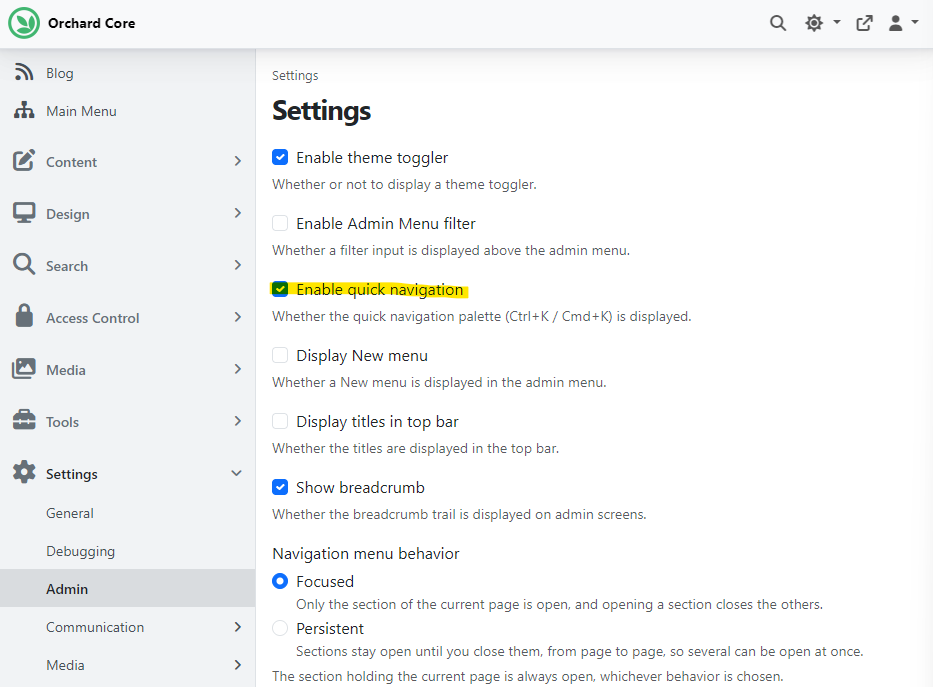
There's also a new Content Quick Navigation feature that you can enable under Tools -> Features. It adds edit links for the 50 most recently updated content items, using their display text and respecting edit permissions. You can change this number under Settings -> Admin. Read more about Content Quick Navigation in the docs.
Now let's try it out! First, we searched for Admin and opened Admin Settings, where you can set the number of recent content items shown in quick navigation. Then, using Content Quick Navigation, we opened the editor for the blog post created by the Blog recipe straight from the palette. Finally, we jumped to the Roles page.
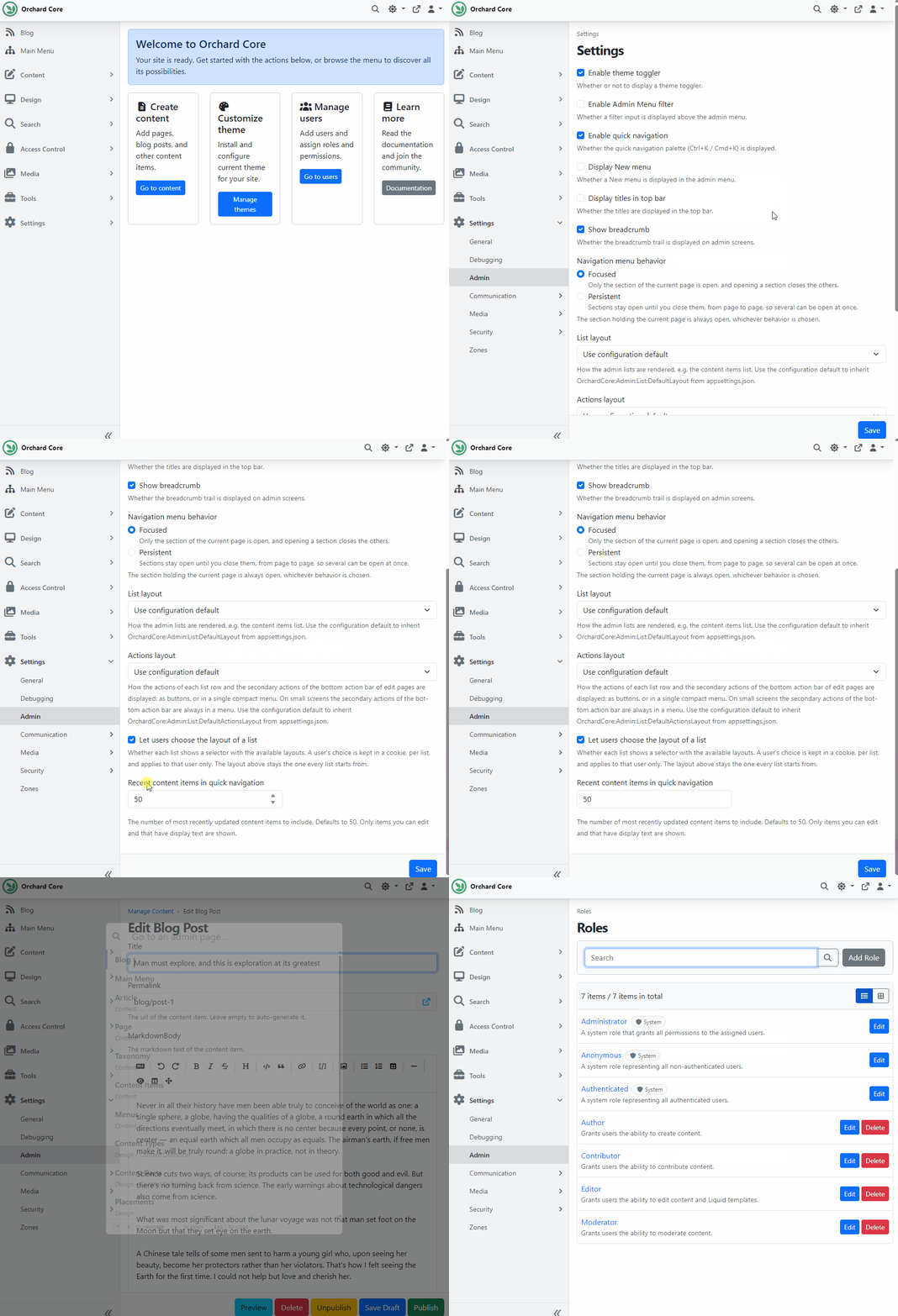
Thanks to Antoine Griffard for the contribution! If you want to see this feature in action, head to YouTube for a recording!
Group configuration sections by service and add appsettings.json schemas
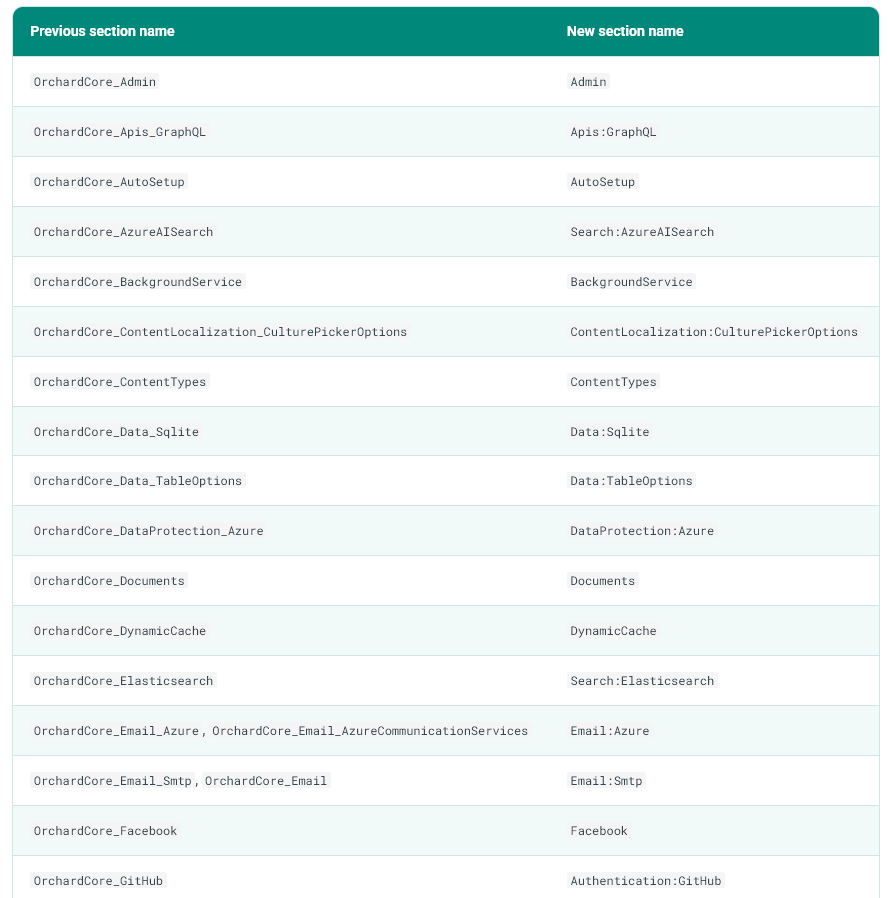
Thanks to Mike Alhayek, the configuration sections are no longer prefixed with OrchardCore_. They're grouped by service instead, with a nested section for each service provider, so all the settings for a service are in one place. For example, the OrchardCore:OrchardCore_Email_Smtp section is now OrchardCore:Email:Smtp, next to the OrchardCore:Email:Azure section, and the OrchardCore:OrchardCore_Elasticsearch section is now OrchardCore:Search:Elasticsearch, next to the OrchardCore:Search:AzureAISearch section:
{
  "OrchardCore": {
    "Email": {
      "Smtp": {
        "DefaultSender": "[email protected]"
      }
    },
    "Media": {
      "Azure": {
        "ContainerName": "media",
        "ImageCache": {
          "ContainerName": "imagecache"
        }
      }
    },
    "Search": {
      "Elasticsearch": {
        "Url": "http://localhost"
      }
    }
  }
}
The previous names are deprecated, but they're still supported alongside the new ones, so existing configurations keep working. When a setting is defined with both names, the value defined with the new name is used, and an array defined with the new name replaces the array defined with the previous name. We recommend renaming your configuration sections in your appsettings.json files, environment variables, and other configuration sources, because the previous names will be removed in a future major version.
The Orchard Core packages that read a configuration section now also include a ConfigurationSchema.json file describing their sections. Visual Studio uses these schemas to provide IntelliSense, descriptions, and validation when you edit your project's appsettings.json files. It suggests section and setting names, the known values for settings like database providers, setup recipes, time zones, or cultures, and flags deprecated section names.
For the full list of renamed sections, check out the release notes, and head to YouTube for a recording!
Make action buttons sticky at the bottom of the page
The submit buttons of the admin edit pages (Publish, Save, Cancel, and so on) are now rendered in a bar fixed to the bottom of the viewport, so they're always visible without scrolling. This includes the template editor, whose actions were previously in a separate top bar. Views opt in with the action-bar-bottom class and mark their secondary actions, such as Delete, Preview, or Publish Later, with action-bar-secondary.
When the Actions layout setting is set to Menu, the secondary actions move into a single ellipsis menu at the end of the bar, and only the main actions stay visible. On small screens, the secondary actions are always in this menu.
Every page now orders its actions the same way: Cancel first, then the secondary actions, and the main action, such as Save or Publish, last. The buttons share the same styles too, so the main action of every page other than the content item editor is a btn-primary button. Modal dialogs follow the same order, with Cancel first and the confirming action last. This includes the confirmation dialog of confirmDialog(), where the Cancel button now comes before the OK button. If you have custom admin edit views, use these classes and this order there too. See the Edit page action bar docs for more.
To see it in action, we opened the editor of the Blog Post content item created by the Blog recipe. The buttons are right there, without scrolling to the bottom of the page.

Thanks to Georg von Kries for the sticky action bar, and to Mike Alhayek for the consistent order and styles! Check out the recording on YouTube to see it live!
News from the community
Sponsorship Spotlight: Yevhenii Shunevych
Publishing a side project on GitHub is easy. Keeping it alive once other teams depend on it is a different job.
Yevhenii Shunevych has been doing that job since 2015, when he started Atata, an open-source test automation framework for .NET. Back then, teams using Selenium kept building their own framework for each project. Today, our UI Testing Toolbox for Orchard Core is built on Atata, and Yevhenii also added its monkey testing feature.
In the latest Sponsorship Spotlight, we asked him how Atata started, where it's heading with Atata 4, and what he'd tell someone about to publish their first project.
His view on sponsorship is honest: it doesn't pay for the time a project takes, but it's a strong motivator, and companies should give more back to the open-source projects they depend on.

Orchard Dojo Newsletter
Lombiq's Orchard Dojo Newsletter has 402 subscribers! We have started this newsletter to keep the Orchard community informed about the latest platform news. By subscribing to this newsletter, you will receive an email whenever a new post is published to Orchard Dojo, including 'This Week in Orchard', of course.
Do you know of other Orchard enthusiasts who would like to read our weekly articles? Tell them to subscribe here!